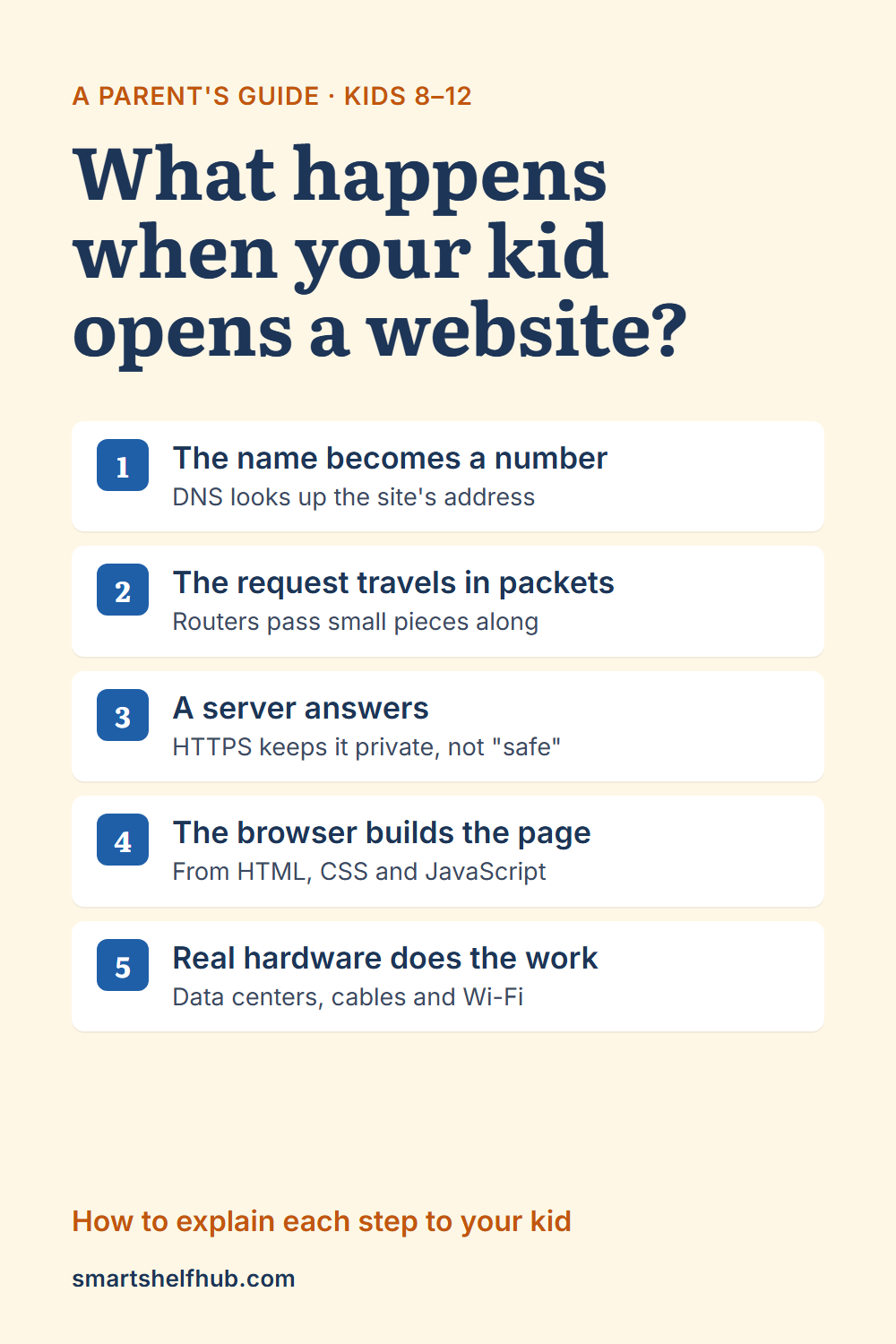
Your kid taps a link and a page appears almost instantly. To them it feels like the page was simply sitting there, waiting. In reality, dozens of machines in different places just cooperated to build that screen, and most of the trip happened in less than a second.
Kids between 8 and 12 are ready to understand this, and it is worth explaining. A child who knows that a website lives on someone else’s computer, and that information travels through many hands to reach them, starts asking better questions about what they share and what they trust. Here is a way to walk through it together, using things they already know.
Start with the idea that the internet is a network of networks
Your home Wi-Fi is a small network: the router connects your phone, the laptop and maybe a game console. Your internet provider connects your home network to its own, much bigger network. That network connects to others, and those connect to others, across cities, countries and oceans. “The internet” is the name for all of those networks agreeing to pass information along for each other.
A good way to make this concrete: ask your child to find the router at home. Point out the lights. Explain that everything they do online goes through that box first, then leaves the house through a cable.
Step 1: The website’s name becomes a number
Computers on the internet find each other by number, called an IP address, not by name. When your child types a website name, the device first asks a directory service called DNS (the Domain Name System) which number belongs to that name. It works a lot like looking up a friend’s name in your phone to find their number.
A question to ask your kid: “Why do you think we use names instead of numbers?” (Because people remember names, and computers prefer numbers.)
Step 2: The request travels in small pieces
Your child’s device sends a request to the computer that holds the website, called a server. Like almost everything online, the request is broken into small chunks of data called packets. Each packet carries the address it is going to, a bit like an envelope.
Routers along the way read that address and pass each packet one step closer. The packets don’t all have to take the same route. At the far end, they are put back together in the right order. Rules called TCP help make sure nothing is missing and everything arrives in sequence.
Try this at the kitchen table: write a short sentence on a strip of paper, cut it into word-sized pieces, number them, and hand them to different family members to “deliver” across the room by different paths. The receiver rebuilds the sentence using the numbers. That is a packet network.
We follow this whole journey, with diagrams, in How the Internet Works for Kids Ages 8–12
Step 3: The server answers
The server receives the request and sends back the files that make up the page. Web browsers and servers talk using shared rules called HTTP. When the address starts with HTTPS, the data traveling between the browser and the website is encrypted, so other people on the network, such as someone on the same public Wi-Fi, can’t read it or change it along the way. HTTPS also checks that the browser is really connected to the website named in the address bar.
This is a good moment for an important safety lesson. The padlock icon means the connection is encrypted and the address is the one shown. It says nothing about whether the people running the website are honest. A scam site can have a padlock too, so “padlock” never means “safe.” Kids often believe it does, so it is worth saying out loud.
Step 4: The browser builds the page
The browser doesn’t receive a finished picture. It receives instructions. HTML gives the page its structure (headings, paragraphs, buttons), CSS controls how it looks (colors, sizes, layout), and JavaScript makes things interactive. One page can also pull in images, fonts and videos from other servers, so a single click may set off dozens of separate requests.
If your child is curious, many browsers let you right-click a page and choose “View page source.” It looks confusing, and that is the point: every website they visit is built from text instructions like these.
Step 5: There is real hardware behind “the cloud”
Kids often imagine the cloud as something floating in the air. It is actually rooms full of computers in buildings called data centers, which need electricity, cooling and network cables to run. Much of the traffic between continents travels through cables laid on the ocean floor. Showing your child a map of undersea cables (easy to find online) usually gets a strong reaction.
Turn the explanation into safety habits
Once kids understand that a message travels through many systems and lands on someone else’s computer, privacy rules start to make sense instead of sounding like random restrictions. A few conversations that build naturally on the steps above:
- Anything you send leaves your device. Photos, messages and personal details are stored on other people’s servers. Deleting something on your screen doesn’t always delete every copy.
- Messages can pretend to be someone you trust. Phishing messages copy the look of a game, a school or a bank to get you to type a password or personal details into a fake website. The words of a link can say one thing while the real address is different, and look-alike addresses may differ by a single letter. Before typing anything, check the address bar, and when in doubt, go to the website directly instead of tapping the link.
- Opening or installing a file can run programs on your device. Most downloads, like a picture or a school worksheet, are harmless to save. The risk comes from installing apps or programs, or opening files from someone you don’t know, because those can run code you didn’t choose. That is why it matters to ask a grown-up first.
- The padlock is about the connection, not the website’s honesty. Worth repeating more than once.
Keep the conversation going
You don’t need to cover all of this in one sitting. Pick one step each time your child is online: the next time a video buffers, talk about how much data is traveling; the next time they type a web address, mention DNS. Short, repeated conversations stick better than one long lecture.